
New Settings: Tabs, Device Card and Backups!
 SETTINGS
The settings got a complete makeover! Instead of one long page to scroll, they are now organized in tabs, and a new Backup tab lets you take your settings, your keybinds and your HUD layouts to any other device.
One Tab per Topic
Open the settings with the gear button, on the homepage or in game. You'll find 6 tabs: Controls, Tamons, Interface, Graphics, Audio and Backup. On phones and tablets, a Mobile tab comes first, with the 1-Click Actions.
Each card has its own title and lines between its rows, and a counter like "2 / 13 on" tells you how many switches of the card are turned on. The last tab you used stays open until you reload the page.
Controls
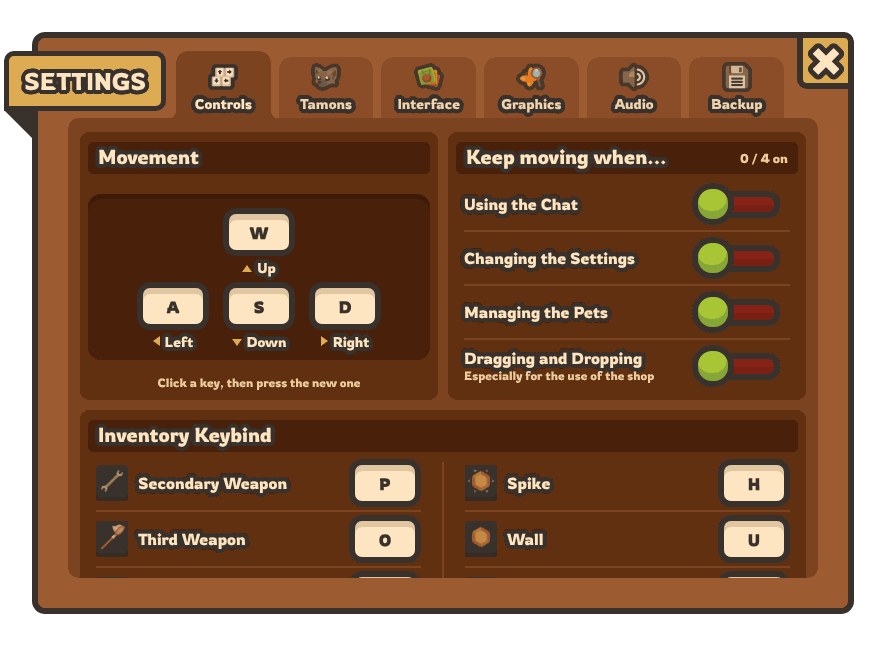
Your movement keys are now drawn like a real keyboard: click a key, then press the new one. Below them, the "Keep moving when..." switches, your inventory keybinds with the icon of each item, the 10 item slots and all the other keybinds.
Tamons
Everything to command your pets: the target and skill keys of each Tamon, Pet Move, the key to trigger all the skills at once, and Switch Pet.
Interface
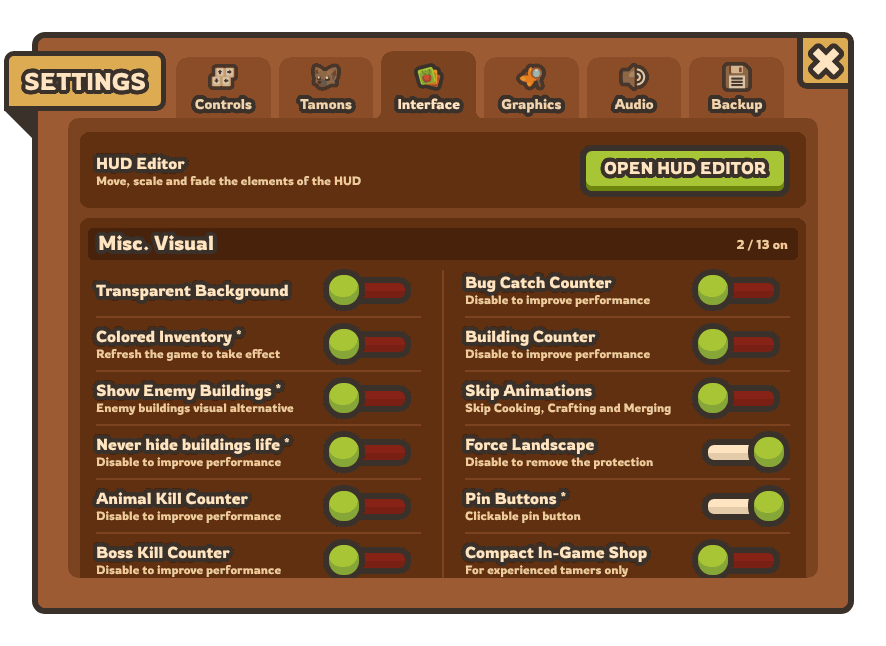
The HUD Editor button now sits at the top of this tab. Below, all the visual options: the counters, Skip Animations, Force Landscape, Pin Buttons, the Compact In-Game Shop and the chat filters. And Transparent Background now also makes the settings window see-through.
Graphics
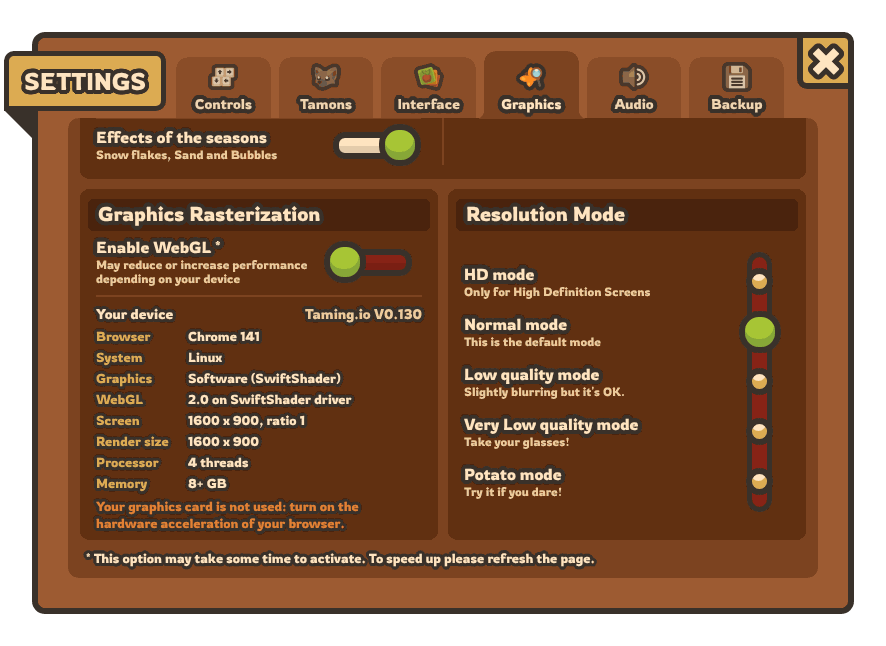
The graphics switches, WebGL, and the 5 resolution modes:
- HD mode: the full pixel density of your screen.
- Normal mode: 100%, the default one.
- Low quality mode: 80%.
- Very Low quality mode: 50%. "Take your glasses!"
- Potato mode: 35%. "Try it if you dare!"
You can now click the names of the modes, not only their buttons.
Your Device Card
At the bottom of the Graphics tab, the new Your device card shows the version of the game, your browser, your system, your graphics card, WebGL, your screen, the render size, your processor and your memory.
If your browser doesn't use your graphics card, the card tells you to turn on the hardware acceleration of your browser: it is one of the best ways to reduce lags! And if you ask for help on Discord, a screenshot of this card is very welcome.
More tips to make the game run smoothly:
HOW TO REDUCE LAGS
Audio
The volume of the sound effects and of the music, Team Sound, and the options to load the sounds and the homepage music.
Take Your Settings Everywhere
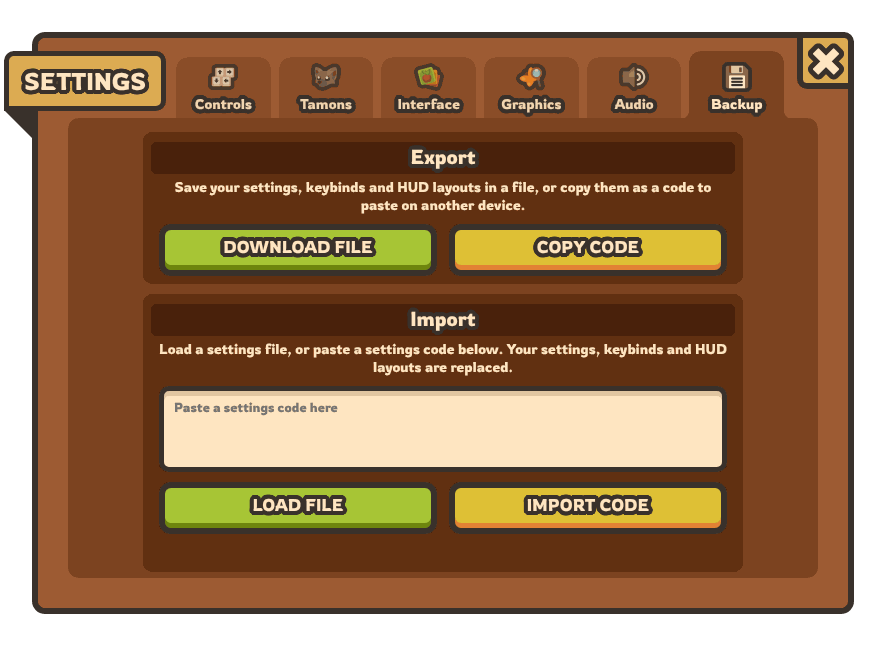
New phone, new computer, or just a fresh browser? The Backup tab saves your settings, your keybinds and your HUD layouts in one go.
Export
- DOWNLOAD FILE saves everything in a small file: taming-settings.json.
- COPY CODE copies a code on one line. Paste it wherever you want, even in a chat message: the text around the code is ignored when you import it.
Import
On your other device, open the Backup tab and click LOAD FILE, or paste your code and click IMPORT CODE. The game asks you to confirm, then replaces your settings, keybinds and HUD layouts. It even works from the homepage.
Smart Backups
- Only the keys you changed are saved, so a French keyboard keeps its Z and Q.
- The Mobile options only come from phones and tablets: a backup from your computer won't touch the 1-Click choices of your phone.
- Your HUD layouts are saved for each screen mode you edited: computer, touch landscape and touch portrait.
- A backup stays valid after the updates of the game.
By the Numbers
- 6 tabs on a computer, 7 on phones and tablets.
- 94 options in total: 49 switches, 42 keys, 2 volume sliders and the resolution mode.
- 5 resolution modes, from HD to Potato.
- 1 file or 1 code to bring them all with you.
Set it once, take it everywhere!
OPEN THE SETTINGS
 GAME UPDATE
 COMPETITION