
Customize Your HUD with the HUD Editor!
 GAME UPDATE
Your interface, your rules! The new HUD Editor lets you rearrange the whole in-game HUD: move every element where you want it, make it bigger or smaller, fade it, or hide it completely.
Whether you play on a big screen, a laptop, a tablet or a phone, you can now build the layout that fits your hands and your play style.
How to Open the HUD Editor
The editor works while you are playing, so join a game first. Then click the Settings button of your HUD, the gear in the button bar, and click OPEN HUD EDITOR. From the homepage, the game simply tells you: "You can only use it while in game".
The world keeps running while you edit and your Tamer stops moving, so find a quiet spot before you start redecorating!
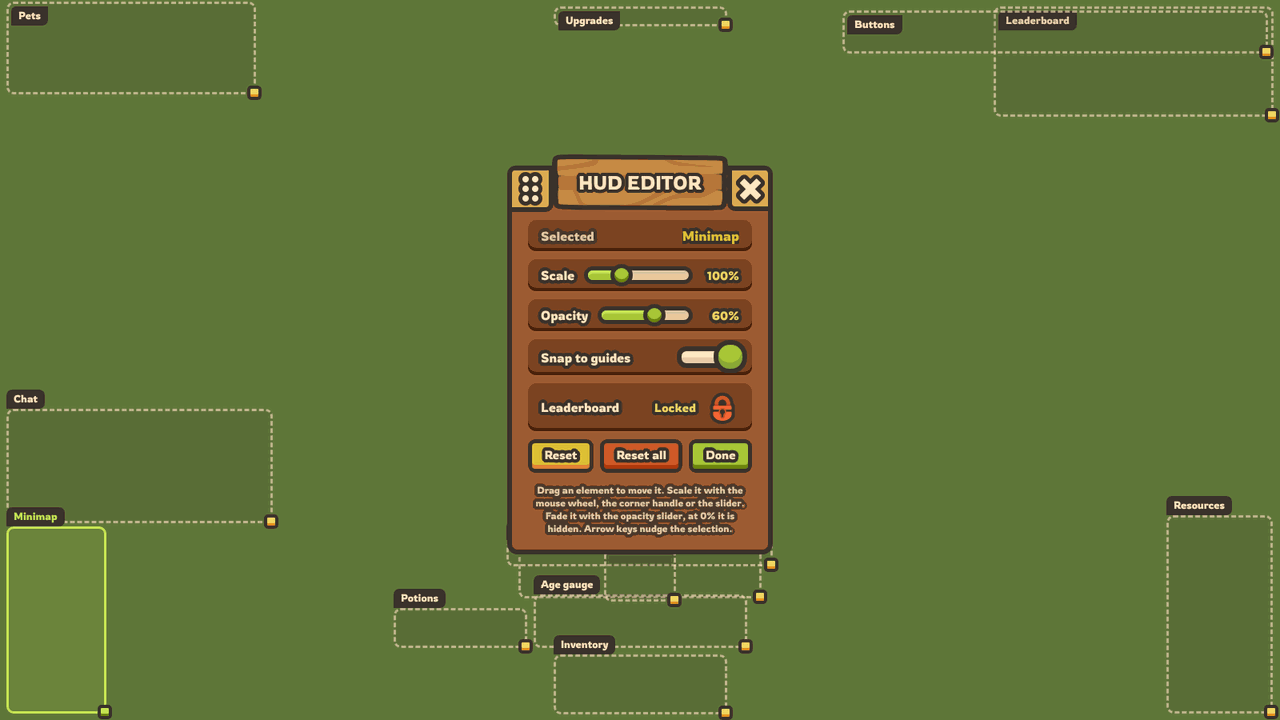
Every Element Has Its Frame
Once the editor is open, each part of the HUD gets a dashed frame with its name. There are 13 elements you can edit:
- Inventory: your item bar.
- Upgrades: the "Select your next item" choice.
- Age gauge: your experience bar.
- Tame button.
- Potions: up to 3 potion slots.
- Resources: gold, wood, stone, food and Golden Apples.
- Minimap, with the server name and the clock.
- Chat.
- Pets: the cards of your Tamons and their buttons.
- Leaderboard.
- Buttons: the button bar.
- Notifications, like "Achievement unlocked!".
- Messages from the server.
Unlock the Groups
Three elements are groups: the Inventory, the Buttons and the Leaderboard. Select one and click the padlock row of the editor to unlock it: each piece inside then gets its own frame and can be placed on its own.
- The Inventory splits into 10 slots, named after what they hold, like "Food - Apple" or "Wall - Wooden Wall". When you upgrade an item, its slot stays where you put it.
- The Buttons split into 9 buttons on a computer, and 12 on phones and tablets.
- The Leaderboard splits into its header and its lines.
That makes 34 editable pieces on a computer and 37 on a touch screen!
Move, Scale and Snap
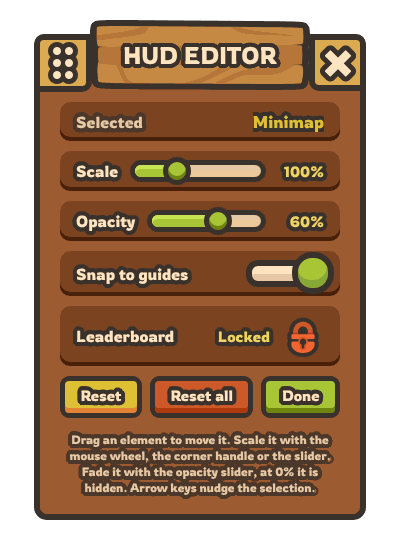
Click or tap an element to select it, then:
- Drag it anywhere. It always stays fully on the screen.
- Scale it from 50% to 200% with the Scale slider, the yellow handle in its corner, or the mouse wheel (5% per notch).
- Nudge it with the arrow keys: 1 pixel at a time, or 10 pixels with Shift.
Snap to guides is on by default: when you drop an element close to the edges of the screen, to its center lines or to its original spot, it snaps right into place. Turn the switch off for a completely free placement.
A small detail that makes a big difference: after a drop, each element sticks to the nearest side or to the middle of the screen, so your layout keeps its shape when you resize your window.
Fade or Hide with the Opacity Slider
Each element also has its own Opacity slider, from 0% to 100%. Fade the Leaderboard lines to see the battlefield behind them, make the Chat more discreet, or keep only the buttons you really use.
At 0%, the element is hidden: it is not drawn and can't be clicked anymore. Its frame stays in the editor, marked "(hidden)", so you can bring it back at any time. As hidden elements are not drawn at all, you even save a little performance.
Careful: keep the Settings button visible! During a game, it is your only way back to the Settings, and to the HUD Editor. Hiding the whole Buttons group would hide it too.
Saved Automatically
There is no save button to forget: every move, resize or fade is saved right away.
- Reset puts the selected element back to its default place, at 100% scale and 100% opacity.
- Reset all resets the whole layout.
- Done, the cross or the Escape key closes the editor.
Your layout is saved in your browser, on the device you are playing on.
Perfect for Mobile
Phones and tablets get their own layouts: one for landscape and one for portrait, separate from your computer layout. Turn your phone and the right layout appears instantly.
Tap an element to select it, drag it with one finger, and resize it with its corner handle or the Scale slider. The touch-only buttons can be placed too: Chat, Team chat, Auto hit, Auto spell and Move all.
Want to play in portrait mode? Turn off Force Landscape in the settings and build a layout for it.
Ideas for Your Layout
- Bring the Minimap closer to the center of your screen.
- Scale up the Inventory on a phone to get bigger slots.
- Put your Potions right next to your item bar.
- Fade the Leaderboard and the Chat to see more of the map.
- Hide the buttons you never use.
Your game, your interface!
CUSTOMIZE YOUR HUD
 COMPETITION